YCYC

Showing posts with label Geek. Show all posts

20090701

Untitled

Hi all, it's been a long time since I've posted anything at all. I finally have a good break since I started school last year, but it's not much of a break to be honest.

I got a HTC Magic and a MacBook Pro 13-inch recently, and both of them are amazing gadgets! I shall blog more some other time.

On a more important note, it's been 3 years and 11 months since I got with my wonderful Geri! ^_^


20081215

N95 Died =(.

After just 1 year and 2 months of using my trusty (no longer) N95 8GB, it suddenly died last Thursday night. The screen just refused to display anything =(. Thankfully, I was still able to connect it to my computer to copy all the contents out.

Anyway, on Friday, I went down to StarHub Tampines to get an InnoV8. Actually it's more of a gift from mum =). So far it's been really good! The build of the Samsung InnoV8 feels solid, compared to most of the N Series, and although I'm having problems installing a lot of software on it, the bundled stuff work well enough for now. I guess it's just a matter of time before some applications get updated for the InnoV8. The build quality's awesome, the camera's superb, and well, it's good =)!

I'm just sad that my N95 decided to abandon me so suddenly. I'll be taking it down to the (usually lousy) Nokia Care Centre later. Hopefully things have improved.

On a different note, with hope, comes expectations, and with that comes... disappointment?

Anyway, the LOML will be ending her exams tomorrow =)! Can't wait to spend time with her (finally)! =P

20081018

Some Software I Use

Although I've posted some stuff here that's related to Windows, I actually spend about 1/2 the time on a Linux machine as well, either Ubuntu (on my PC and laptop), or Fedora (in school). I actually like the way Ubuntu handles windows, as well as the usage of virtual desktops, and have been some applications running on my Windows setups to try and achieve a similar effect. I don't particular like too much eye-candy, as I prefer function over form, but a little eye-candy never hurts. I'm running Windows XP by the way.

Virtual Desktop Applications:

  • Shock 4Way 3D - I am currently using this as it works really well. You can configure the eye-candy settings to your liking and all, and can pretty much configure each virtual desktop separately. Sending of windows from one desktop to another is also possible, although you'd have to use the built-in screen manager to do so. I'd liked it more if I could just right-click on an existing window and have some sort of "send to" function. One gripe I have is that this application can take up to 40MB of RAM, which can be an issue for some people. There are various other Shock software on the website, although I haven't tried them.
  • Virtual Desktop Manager - One of Microsoft's PowerToys. It works, although it is pretty basic. It might be more suited to your needs than the above depending on what you want. Give it a try =).
  • Desktops - By Sysinternals (now part of Microsoft). I've tried it and it works well, but I still prefer Shock 4Way 3D.

Others:

  • TaskSwitchXP - A really good Alt-Tab alternative. It makes Alt-Tab more useful by giving much more information =).
  • Taskbar Shuffle - Ever wanted to re-arrange the order of the taskbar buttons, like how you can re-arrange tabs in Firefox?
  • allSnap - I love how windows snap to the edge of the screen or to one another in Ubuntu. It just gives a more organized feeling. allSnap provides that function in Windows.

Non-Related:

  • Dropbox - More of a service than an application, it allows you to store files very easily. Check out the site for more information. The bad: It might not be free once out of beta.

Alright, I guess that's about it =). Hope you find these stuff useful! And...

20081013

Great Weekend + SuRun

Despite my earlier post which was kind of whiney regarding school matters, I had a great weekend =). Being with Geri is simply the kind of thing that may just happen once in your life =). Ok, end of lovey-dovey stuff. Of course, being with my wonderful friends and Geri makes for an even more awesome weekend.

On to some computer-related stuff, for those of you who are still on XP (like myself), regardless of what you feel towards Vista, SuRun is something you should check out. Why? Basically, in XP, most of us are running with administrator rights, unless you specifically selected yourself to have limited rights. Running with limited rights basically means that you do not have access rights to things which are system-related. However, for people like myself, running in a Limited User Account (LUA) can be quite troublesome, as I would then not be able to do certain things which would requite Administrator rights (which is why I have been trying to convince myself that running with administrator rights is alright. That is where SuRun comes in. Basically, it allows you to elevate yourself to administrator rights only when required (for the particular action you need to perform).

There are already various posts on the internet on why LUA is preferred over an administrator account, so I would not be giving my take on it. I've gotten most of my information regarding SuRun from the this thread over at Wilders Security, and below are the more important sections (or other links) that I believe would help you in setting and getting your SuRun configuration up and running as soon as possible (in order):

  1. Get SuRun from the website.
  2. Read the first post on this thread for a brief overview.
  3. Read this post for a tip on how to set up SuRun quickly.
  4. Read this post for some final touch-ups.

That's about it! I strongly recommend you read through the thread itself as it contains a wealth of information, as well as possible problems you might encounter running with limited rights (which can be fixed pretty easily). Also, please visit this site (taken from the Wilders Security thread) for a load of reasons on why you should NOT be running with administrator rights.

Happy running in LUA mode =)!

20081007

Latest Laptop's Desktop Screenshot

Update 1:

Finally I managed to design a clock I like! Check it out!

Neoshooter 7

Today's a good rest day as I my last mid-term's today! Anyway, I just hope I can do well, don't want to think about it. Here's the latest update to my desktop (on my laptop). =P

A little-known fact, I like gothic-style dressing ^^.

Currently listening to: Eminem - Hellbound

Neoshooter 5

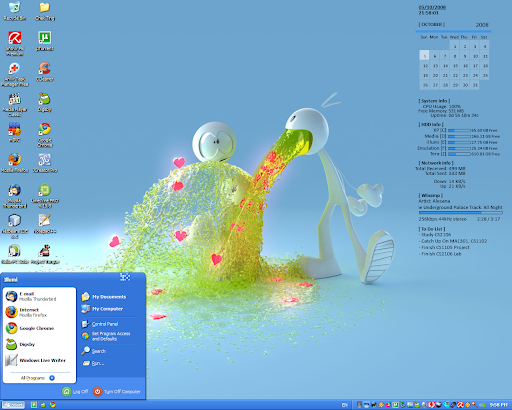
Anyway, for those of you interested, the things displayed on the desktop are all done using Samurize. It's pretty amazing, although it hasn't been updated for a while. I used to use it, stopped, and am now back to it. Together with Launchy, I can get access to all my stuff rather easily, yet maintaining a clean desktop =).

Application: Samurize
Samurize Plugins Used:

20081006

Laptop's Desktop =P

Update:

Changed the theme.

Neoshooter 3

Theme: SlanXP 2.0

Currently listening to: Electrico - Shadow

Neoshooter 2

Applications: Launchy

Wallpaper

Theme: Whistler Schnapps (As Per Previous Post, Just A Different Colour Scheme)

By the way, I'll be having my last mid-term paper tomorrow! =)

20081005

Desktop Screenshot

Update:

After studying for the past few hours I've decided to rest and update my desktop a little more. It currently looks like this:

ss2

Just added a Calendar. Lol =P. Anyway, just some more useful software for you all:

Taskbar Shuffle - Allows your to re-order your taskbar buttons (similar to how you re-arrange your tabs in Firefox).

Neoshooter - Old, but good and free screenshot capturing application (I used it for both this and the earlier screenshot).

Old Post:

I've decided that I'll start posting more geeky/techie stuff on this blog from now on, since I usually talk to my friends about it anyway (especially Mac, lol). Anyway, here's my desktop (I just did a clean install recently) screenshot, with Samurize (haven't touched it for ages). Still deciding whether to patch the icons with the Tango Superpatcher or not... Haha.

Neoshooter 1

Theme: Whistler Schnapps
Wallpaper: Love Juice

Currently listening to: Alesana - Endings Without Stories

20080930

Useful Software

Alright, I'm just going to take a break for now, and write about why I use the following software:

1. Digsby
It's an IM client that's still in its beta stages, but it has already won me over (at least on Windows). I use Pidgin primarily, since I use Ubuntu fairly often (as long as my projects or whatever doesn't require Windows). Anyway, I simply love Digsby for the following:

  1. Ability to connect to many IM services (actually it doesn't matter to me, cause I mainly use MSN, but it's still a very good thing to have, since I do have friends who are on other services.)
  2. Ability to connect to Facebook, and other social networking sites, and receive updates! I didn't care much about social networking sites in the past, but since getting into Uni I realised Facebook is one of the easier ways to let me know how my friends are doing. Even then, I found it troublesome to open a browser, log-in, etc. However, with Digsby, it's just there. The updates and all. It's just so seamless!
  3. Ability to connect to various email services. For example, I currently have mine set up to connect to my Gmail and Yahoo! Mail. From Digsby I can check how many new emails I have, etc. (like Gmail Notifier).
Well, there're still some cons with it though, but I trust that they'll be resolved soon.
  1. No way to invite other people to a conversation, in other words, it is currently unable to start a multi-user chat. Of course, people can still invite you into their chat, but you can't invite others. This can be an issue for those who do mass chats often.
  2. Memory usage is a little high, although this has been hugely improved in the latest version.
  3. I think the file transfer is a little cranky. Sometimes it just doesn't work.
Lastly, one point that some people have a problem with... You must have a Digsby account. Now, why is this good, and why is this bad? Basically, with Digsby, you sort of assign all your other accounts to it. So, all you have to do is log into Digsby, and everything else, such as your MSN, Yahoo!, Facebook, etc. will log in automatically. Some people might find this an invasion of their privacy, especially if you use a particular email for professional correspondences. Well, to me, if you're worried, just don't link that particular account. Also, from Digsby:

"This information is stored on our servers and is encrypted in a manner that would prevent anyone, including DOTSYNTAX LLC employees from accessing your passwords."

Of course, the final decision is yours. In addition to Digsby, I also use Pidgin often (on Ubuntu).

2. Avira AntiVir Free
For those of you who refuse to pay for an anti-virus, and do not want to resort to piracy, Avira AntiVir is really good. It has served me well for the past few months =). I frequent the following sites often, so do a check for yourself if you want to:

www.wilderssecurity.com
www.av-comparatives.org

3. WinPatrol
The free version is already very good. Basically, this program will notify you of any changes made to your system, and ask if you would allow it, etc. This is a very brief description, please check out the website for more information. Also, if you choose to buy the Plus! version (like I did recently), visit billpstudios.blogspot.com for a coupon to receive a $10 discount =).

4. Unlocker
Taken straight from the site:

  • Ever had such an annoying message given by Windows?

  • It has many other flavors:

    Cannot delete file: Access is denied
    There has been a sharing violation.
    The source or destination file may be in use.
    The file is in use by another program or user.
    Make sure the disk is not full or write-protected and that the file is not currently in use.
  • Unlocker is the solution!
Ok, enough said =).

Alright, I guess that's about it. Have a good day =)!

20041117

Spyware Removal & Prevention

Step 1: "Blocking Unwanted Paraistes with a Hosts File"
Link: http://www.mvps.org/winhelp2002/hosts.htm

Alright, basically, go to this site, download the file, and follow the instructions. As quoted from the site:

What it does ...
The Hosts file contains the mappings of IP addresses to host names. This file is loaded into memory at startup, then Windows checks the Hosts file before it queries any DNS servers, which enables it to override addresses in the DNS. This prevents access to the listed sites by redirecting any connection attempts back to the local machine. Another feature of the HOSTS file is it's ability to block other applications from connecting to the Internet, as long the the entry exists.

You can use a HOSTS file to block ads, banners, cookies, web bugs, and even most hijackers. This is accomplished by blocking the Server that supplies these little gems. Example - the following entry 127.0.0.1 ad.doubleclick.net blocks all files supplied by the DoubleClick Server to the web page you are viewing. This also prevents the server from tracking your movements.


Step 2: Add Unwanted Sites To IE's "Restricted Zone"
Link: https://netfiles.uiuc.edu/ehowes/www/resource.htm

Same as step 1, just go to this site, READ IT, and download the file and follow the instructions. Short quote from the site:

IE-SPYAD adds a long list of sites and domains associated with known advertisers, marketers, and crapware pushers to the Restricted sites zone of Internet Explorer. Once you merge this list of sites and domains into the Registry, the web sites for these companies will not be able to use cookies, ActiveX controls, Java applets, or scripting to compromise your privacy or your PC while you surf the Net. Nor will they be able to use your browser to push unwanted pop-ups, cookies, or auto-installing programs on your PC.

Step 3: Install SpywareBlaster
Link: http://www.javacoolsoftware.com/

Get SpywareBlaster, update it, select "Enable All Protection".

The most important step you can take is to secure your system. And SpywareBlaster is the most powerful protection program available.

-Prevent the installation of ActiveX-based spyware, adware, browser hijackers, dialers, and other potentially unwanted pests.
-Block spyware/tracking cookies in Internet Explorer and Mozilla/Firefox.
-Restrict the actions of potentially dangerous sites in Internet Explorer.


Step 4: Get Ad-Aware
Link: http://www.lavasoftusa.com/

Install it and scan your PC and remove anything that's found.

Step 5: Get Spybot-S&D
Link: http://security.kolla.de/

Same as Step 4.

Step 6: Personal Recommendations/Thoughts
A:
Use Firefox. Get it from http://www.mozilla.org/

Why? Do a search on http://www.google.com/ and you'll know why.

B:
I personally visit the Wilders Security Forums. I found the links listed in steps 1 and 2 from there as well. Really nice place too.

Ending Thoughts
I wrote this after getting frustrated of the numerous calls I get a day regarding spyware. The stupid thing is, I tell them "I guess it's some spyware...", and before I can complete my sentence, they say, "BUT I HAVE NORTON ANTIVIRUS!" or "I have my FIREWALL and security settings all configured! It's impossible!" Please read up more... Before acting like you know everything.

... And it's like ten to twenty calls a day, regarding spyware. Sigh. I'll attain nirvana if I can tolerate this crap for one solid year.

There is a very good guide at DriverHeaven, which you can view HERE.

Alright, that's all. Have a good day! =)